How to find the biggest videos on iPhone
Photos doesn't sort videos by file size, so look first for long 4K clips at 60 fps, or 120 fps where your phone records it, which take the most space. Check a video's size in its info panel, or let Emptie sort your whole library by the space each video would free.
On this page
The short answer
Photos can’t sort your videos by file size. You can still find the biggest ones quickly. Start with the longest clips, especially those shot in 4K at 60 frames per second, or 120 where your phone records it, because those take the most space for each minute. Then check the exact size of each one in its info panel. If you have many videos, Emptie’s Library sorts them for you by how much space compressing each one would free.
Key Takeaways
- Photos has no sort by file size. Start with length, then check each long clip’s size.
- Apple estimates that 4K at 60 fps takes about 440 MB a minute, so a 10-minute clip takes about 4.4 GB.
- Open a video in Photos and tap the Information button to see its file size.
- Settings › General › iPhone Storage lists apps and recommendations, not single videos.
- Emptie’s Library sorts every video by how much space compressing it would free, biggest first.
Can Photos sort videos by file size?
Photos can sort your library by date added or by date taken. Apple’s page on sorting the photo library names those two orders. Filters can narrow the library to videos, but none of the sort or filter options we found uses file size.
The table below lists every route we checked. Among them, only Emptie’s Library sorts your whole Photos library, by the space each video would free. That depends on the video’s size and on the settings you choose.
| Route | What it shows | Best for |
|---|---|---|
| Length, in Photos | Which clips are long enough to be big | Making a short list |
| Information button, in Photos | The exact file size of one video | Checking each video on the list |
| iPhone Storage, in Settings | Apps, storage use and recommendations | Seeing what else takes space |
| A computer | Sorting copied videos by size in a folder | Many videos at once |
| Emptie’s Library | Each video’s space freed, biggest first | Your whole library |
Why the longest 4K clips take the most space
Length and frame rate decide most of a video’s size. The photo below shows a common way long clips get made: a person filming on an iPhone. A few minutes of 4K can quietly fill gigabytes.


Apple’s Record Video setting shows an estimate for one minute in each format. The screen below is our own capture from iOS 27.1, taken on 29 October 2026. It lists the estimates in High Efficiency. A minute of 1080p at 30 fps is about 65 MB, while a minute of 4K at 60 fps is about 440 MB.
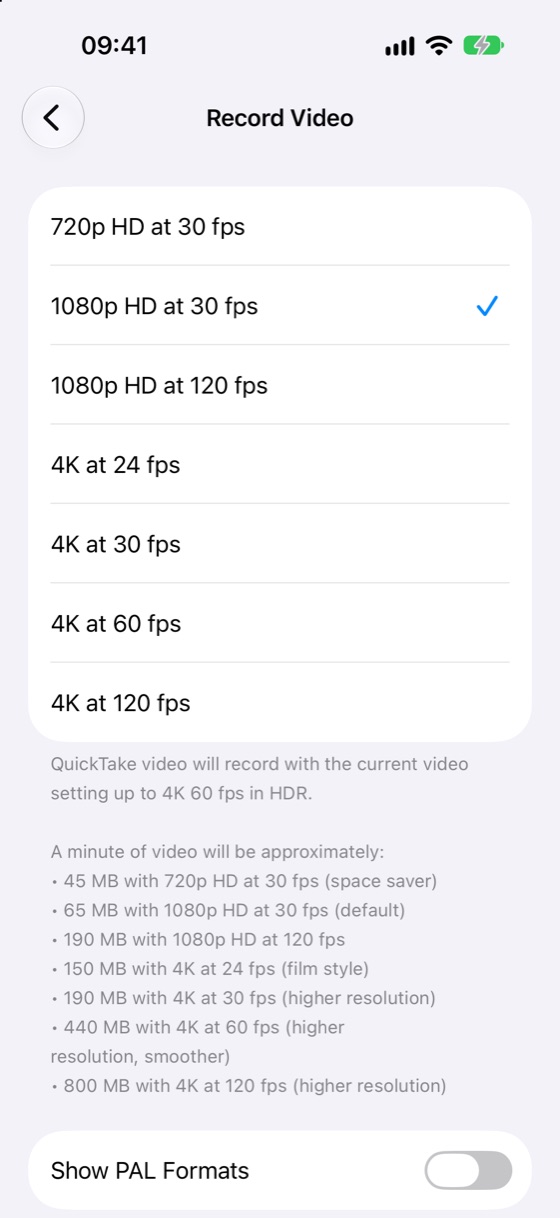
Apple’s Compress a video page gives 70 to 105 MB a minute for 1080p, using the camera’s default settings for exports (Apple Support, Compress a video on iPhone, published 29 July 2026). The Settings estimates above are the ones our guide to how much storage iPhone video takes uses too. Newer iPhones can record at more settings, so measure your own clip if you need an exact number.
Multiply each rate by the length and the gap is plain. A 4K clip at 60 fps is about 6.8 times the size of a 1080p clip at 30 fps, for the same length.
- 4K, 60 fps
- 1080p, 30 fps
A 20-minute 4K clip at 60 fps takes about 8.8 GB, while a 20-minute 1080p clip at 30 fps takes about 1.3 GB. The longest 4K clips at 60 fps are the first place to look. A 4K clip at 30 fps is smaller, at about 190 MB a minute, so frame rate changes the size as well as length does.
Find the long clips in Photos
Apple’s page for iOS 26 gives this route to the videos: open Photos, tap Collections, scroll down to Media Types, and tap Videos. The page was published on 15 September 2025 (Apple Support, Find your Favorites and albums in Photos on your iPhone or iPad). If the menu looks different on your phone, look for Media Types under Collections.
In the Videos list, pick the clips you know are long, and start a short list of them. A 5-minute 4K clip can take more than 2 GB, so anything of that length is worth checking. Length is a guide, not a size. A 3-minute 4K clip at 60 fps is about as big as a 20-minute 1080p clip at 30 fps. The next step gives you the real number.
Check the file size in the info panel
Open a video and tap the Information button at the bottom of the screen. Apple’s page says the file size appears under the name of the device that recorded the video, with other technical details (Apple Support, Compress a video on iPhone, published 29 July 2026).
This shows one video at a time, so use it on your short list.
Use iPhone Storage to check the rest
Open Settings, tap General, then tap iPhone Storage. The screen lists your apps by how much storage they use. Tap Show All to see every recommendation for your device. Tapping a recommendation lets you review the contents it can delete (Apple Support, How to check the storage on your iPhone and iPad, published 13 October 2026).
Apple’s page doesn’t name a recommendation for videos, and the list is of apps, not single videos. So use this screen to see whether Photos is big, then use the steps above to find the videos inside it. The iPhone storage full of videos guide explains where the space goes.
Sort the videos on a computer
A computer is the only route that sorts a set of videos by size without an app. The steps depend on the computer.
On a Mac, connect the iPhone with a USB cable, and the Photos app shows an Import screen. Apple’s steps import the videos into Photos on the Mac (Apple Support, Transfer photos and videos from your iPhone or iPad to your Mac or PC, published 16 September 2026). On a PC, install the Apple Devices app from the Microsoft Store, connect the iPhone, and tap Trust on the phone. Then import the videos into Windows Photos, using Microsoft’s steps. If iCloud Photos is on, Apple says you must download the full-resolution originals to the iPhone before you import them to a PC.
Once the long clips are in a folder, sort the folder by size. In Finder, switch to list view and click the Size heading. In Windows File Explorer, switch to Details view and click Size.
Let Emptie sort your library
Emptie reads every video in your Photos library and sorts the Library by Estimated Savings, which is the space compressing each video would free. Biggest savings come first, and the Library says so at the top of the list. Each row shows the estimated saving, the video’s original size, and its resolution, frame rate and length.
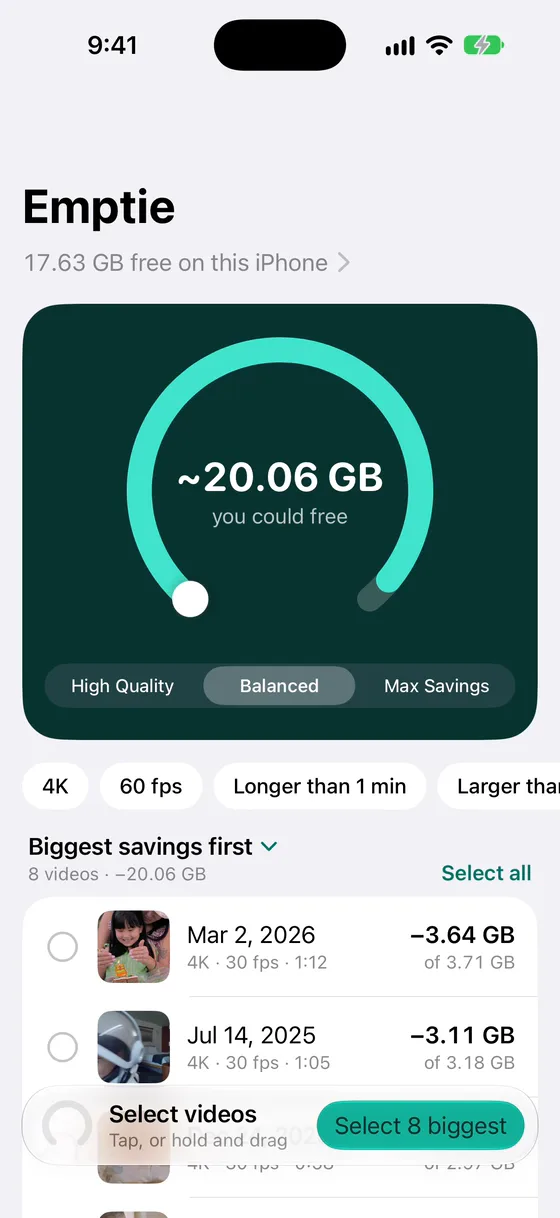
The estimates follow the Preset you choose, High Quality, Balanced or Max Savings. A video that would save less than about 20% is marked Already Efficient, and Emptie leaves it alone. Videos that are stored only in iCloud are skipped, and Slo-mo, Cinematic and Spatial videos are not compressed, because that would remove their special features.
Emptie replaces an original only after its compressed copy is saved to the library and checked. You confirm once, and the original then goes to Recently Deleted for 30 days. Here is what that looked like on a 5-minute 4K clip from our test:
Emptie needs iPhone 11 or later with iOS 26. It’s in a free public beta on TestFlight, and it’s coming soon to the App Store. We have no launch date to give. You can join the beta now. For a side-by-side look at other tools, see the best video compressor for iPhone.
Frequently asked questions
Can I sort Photos by file size on iPhone?
No. Photos sorts by date added and date taken, and its filters don’t use size. To find the biggest videos, start with the longest clips, check each one’s size in the info panel, or let Emptie sort the Library by the space each video would free.
Where do I see a video’s file size on iPhone?
Open the video in Photos and tap the Information button at the bottom of the screen. The file size appears under the name of the device that recorded the video.
Which videos take the most space?
Long clips in 4K at 60 fps, or at 120 fps on phones that record it. Apple estimates about 440 MB a minute for 4K at 60 fps and 800 MB for 4K at 120 fps, against about 65 MB a minute for 1080p at 30 fps. A 10-minute 4K clip at 60 fps takes about 4.4 GB.
Does Emptie show the biggest videos first?
Yes. The Library sorts by Estimated Savings by default, so the videos that would free the most space come first. Each row shows its original size, length and frame rate.