Free up iPhone storage without losing your videos
Some options keep the full video on your iPhone or in iCloud, some copy it off the phone, and compressing swaps it for a smaller file. Emptie replaces an original only after its copy is checked and you confirm, and the original waits 30 days in Recently Deleted.
On this page
- The short answer
- Which option keeps your videos
- Check what is using your storage first
- Option 1: Optimize iPhone Storage
- Option 2: Offload unused apps and check the other big items
- Option 3: Copy videos to a computer or a drive, then delete them
- Option 4: Compress the biggest videos you want to keep
- After you free space
- Frequently asked questions
The short answer
You can free iPhone storage and keep your videos, but each option keeps them in a different way. Optimize iPhone Storage keeps the full video in iCloud. Copying to a computer or a drive keeps a full copy off the phone. Compressing keeps the video as a smaller file, and the original goes to Recently Deleted, where it stays for 30 days. Deleting removes the video, which also waits 30 days in Recently Deleted.
Key Takeaways
- Optimize iPhone Storage needs room in iCloud for the full-size videos, so your iCloud use does not go down.
- Copying to a computer keeps the full file. Delete it from the iPhone only after you have checked the copy.
- Compressing keeps the video as a smaller file. In our test, a 2.18 GB 4K clip became a 323 MB copy.
- Deleted videos wait 30 days in Recently Deleted, so the space comes back only after that album is emptied.
Which option keeps your videos
This table compares the options. The space figures use one 5-minute 4K video of 2.18 GB, the clip from our tests. Your clips will differ.
| Option | Does the video stay on the iPhone? | Is full quality kept? | Cost | Space freed for the 2.18 GB clip |
|---|---|---|---|---|
| Optimize iPhone Storage | Yes, as a smaller copy when the phone needs room | Yes, the full copy stays in iCloud | iCloud storage space | Not measured for this guide |
| Copy to a computer or drive, then delete | No, once it is deleted from the iPhone | Yes, the file is copied as it is | A computer or a drive | 2.18 GB, once Recently Deleted is emptied |
| Compress with Emptie | Yes, as a smaller copy | No, the copy is smaller; no visible loss on the phone’s screen in our test | Free | 1.86 GB, the original less the 323 MB copy, once Recently Deleted is emptied |
| Delete | No | Not applicable | Free | 2.18 GB, once Recently Deleted is emptied |
Decide one video at a time. A clip you never watch can go, and a clip you love can be compressed or copied.
Check what is using your storage first
Open Settings, tap General, then tap iPhone Storage. The screen lists the apps by how much space they use and shows recommendations. Tap Show All to see every recommendation for your iPhone (Apple Support, How to check the storage on your iPhone and iPad, published 13 October 2026).
Apple’s page also says that when storage runs low, iPhone frees space by removing items it can download again or doesn’t need, such as unused apps and temporary files. The page doesn’t mention your own videos, so those are your decision.
Option 1: Optimize iPhone Storage
Apple says that with Optimize iPhone Storage turned on, full-resolution photos and videos are kept in iCloud, and space-saving copies are kept on the iPhone when it needs room (Apple Support, Manage your photo and video storage, published 1 October 2026). To turn it on:
- Open Settings, tap your name, tap iCloud, then tap Photos.
- Turn on Sync this iPhone.
- On iOS 27 or later, tap iPhone Storage, then make sure Optimize iPhone Storage is on.
Apple’s page gives the iPhone Storage step only for iOS 27 or later. It doesn’t show an iOS 26 path, so check Apple’s page for your version if you can’t find the setting.
Before you turn it on, know what it costs:
- It needs iCloud space. Apple’s page says you can keep as many photos and videos as you like, as long as you have enough iCloud space. A full iCloud means this option won’t work.
- Your iCloud use doesn’t go down. The full-size files stay in iCloud, so your iCloud plan fills up as it did before.
- Watching a video that is only in iCloud needs a connection. The phone downloads the full file first, which needs Wi-Fi or cellular data.
Emptie skips videos that are stored only in iCloud, so the Optimize copies stay as they are.
Option 2: Offload unused apps and check the other big items
Apps aren’t videos, but they can take up a lot of space. Apple’s storage page lists Offload Unused Apps among the recommendations. Offloading an app frees the space it uses but keeps its documents and data, so you can get the app back later (Apple Support, How to check the storage on your iPhone and iPad).
Look at the apps at the top of the iPhone Storage list, and read each recommendation before you turn it on. Each one changes something on the phone, so it is worth knowing what before you agree.
Option 3: Copy videos to a computer or a drive, then delete them
This option keeps the full-quality file somewhere other than the iPhone. It has two steps: copy, then delete. Don’t skip the check between them.
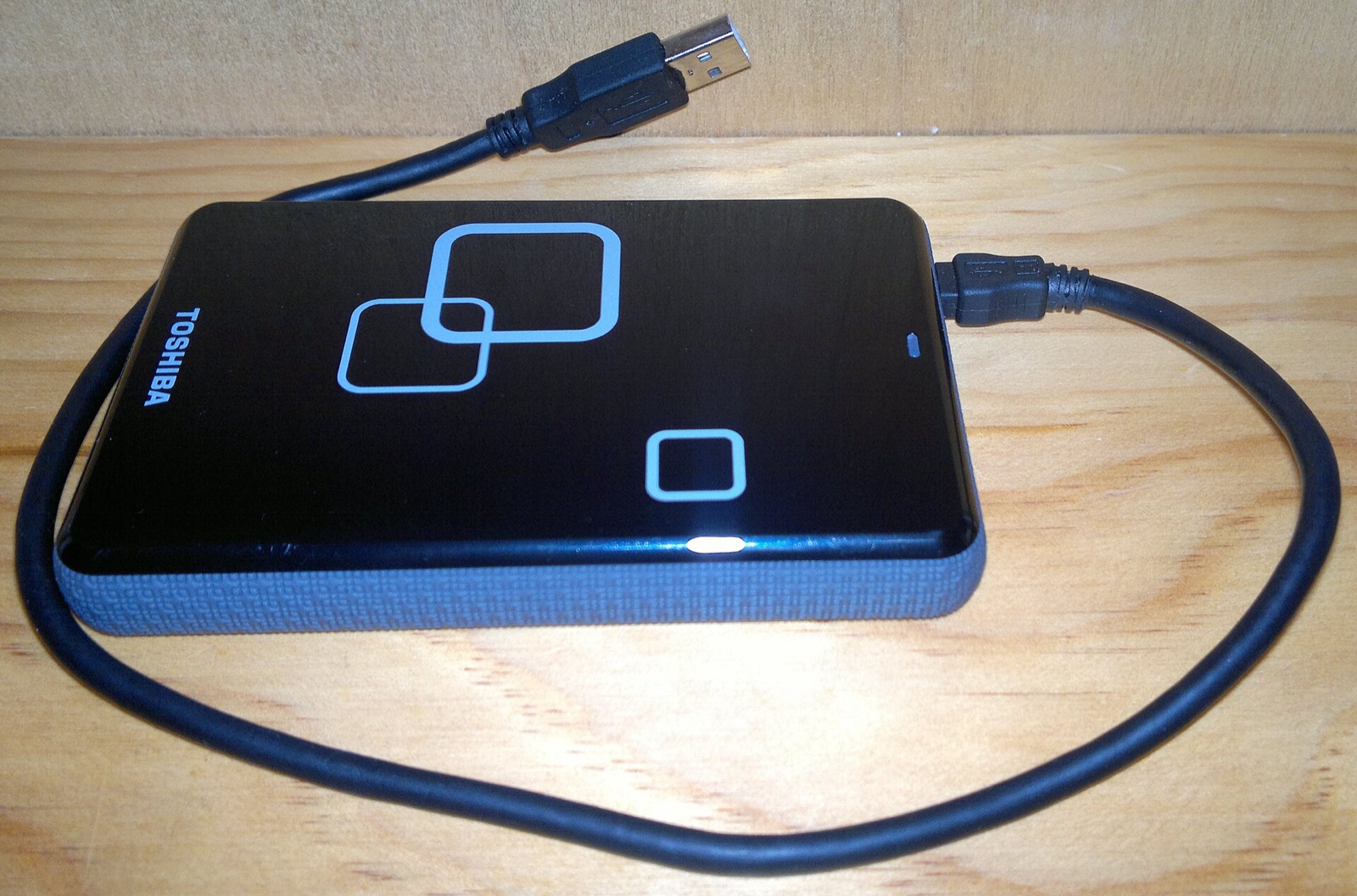

On a Mac, Apple’s steps for the Photos app are these (Apple Support, Transfer photos and videos from your iPhone or iPad to your Mac or PC, published 14 September 2026):
- Connect the iPhone to the Mac with a USB cable, and allow the connection if asked.
- Open Photos. The Import screen should appear, or you can click the iPhone’s name in the sidebar.
- Unlock the iPhone with your passcode if asked, and tap Trust on the iPhone if prompted.
- Choose an album for the import, then click Import Selected or Import All New Items.
- When the import finishes, disconnect the iPhone.
Image Capture, a Mac app, can also import to a folder.
On a Windows PC, Apple’s page points to the Apple Devices app from the Microsoft Store. Connect the iPhone with a USB cable, tap Trust or Allow on the iPhone, and then import the videos with the Microsoft Photos app. Apple also says that if iCloud Photos is on, you must first download the full-resolution originals to the iPhone before you import them to a PC.
To a USB drive, Apple’s guide to moving files from an iPhone to a storage device covers external drives (Apple Support, Transfer files from iPhone to a storage device, a server, or the cloud). Follow its steps, and check it for the adapter your iPhone needs.
Before you delete anything from the iPhone:
- Play the copy on the computer or drive, and check that it runs and has the right length.
- Keep that copy somewhere safe. With iCloud Photos on, deleting a video on the iPhone also deletes it on your other devices signed in with the same Apple Account (Apple Support, Delete photos on your iPhone or iPad, published 31 March 2026). The copy on the computer or drive then becomes your only copy.
- Delete the video from the iPhone. It goes to Recently Deleted, which keeps it for 30 days (Apple Support, How to recover deleted photos, published 15 September 2025). The space comes back only when that album is emptied.
Option 4: Compress the biggest videos you want to keep
Compressing makes a new, smaller copy of a video. The length stays the same, and the picture is re-encoded at a lower resolution, frame rate or bitrate, depending on the settings. For a closer look at how much detail that costs, read whether compressing video loses quality.
Emptie does this on the iPhone for a whole library. It finds the videos that would free the most space, compresses the ones you select as a Batch, and lets you play each copy in Review before anything is replaced. A copy must play and have the expected length, and Emptie deletes the original only after you confirm once in an iOS prompt. The original then goes to Recently Deleted for 30 days.
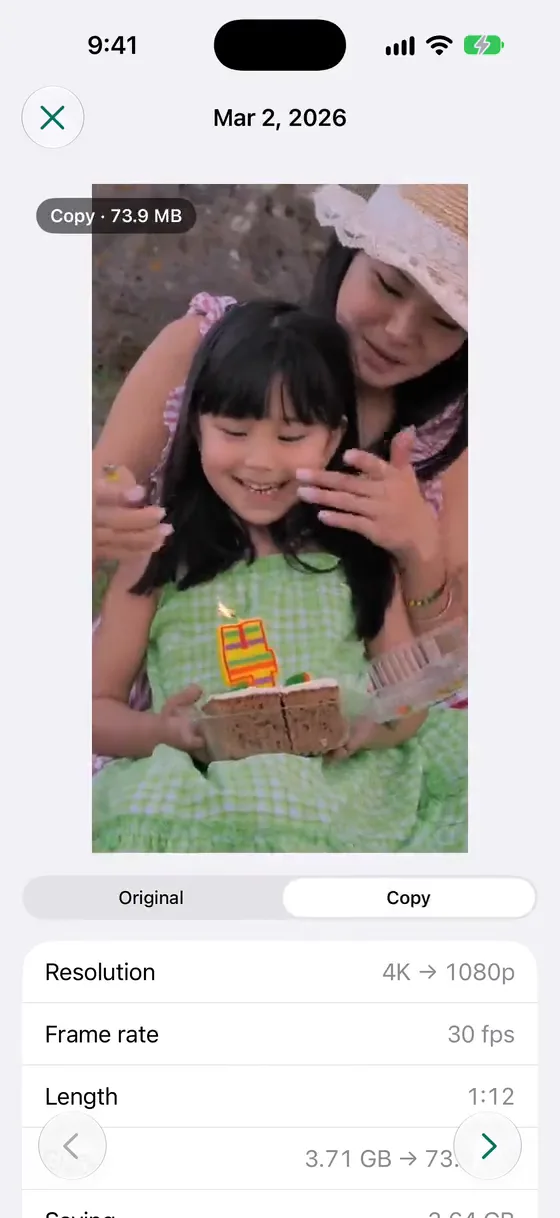
In our test, a 5-minute 4K Dolby Vision clip went from 2.18 GB to 323 MB as 1080p HEVC at 8 Mb/s, with no visible loss on the phone’s screen. A bigger screen may show what the phone hides, so check the copy on the device you will watch it on.
The chart shows what each route frees for that clip. Optimize iPhone Storage isn’t in it, because we haven’t measured it on this clip. The Apple row is Apple’s standard HEVC export, which came out at 591 MB in our test, so it frees 1.59 GB only if you then delete the original.
Emptie copies the date, location, Favorite, Hidden status and your own albums to the new video. Memories, face tags and Shared Album links don’t carry over, and Emptie tells you that before the first replacement. Emptie also skips Slo-mo, Cinematic and Spatial videos, which would lose their special features, and any video that would shrink by less than about 20%. If you would rather use a built-in route, the how to compress video on iPhone guide covers iMovie and a Shortcuts action.
After you free space
When a replacement frees space, Emptie shows how much it freed and reminds you to empty Recently Deleted. The space comes back on the iPhone Storage screen only once that album is emptied.
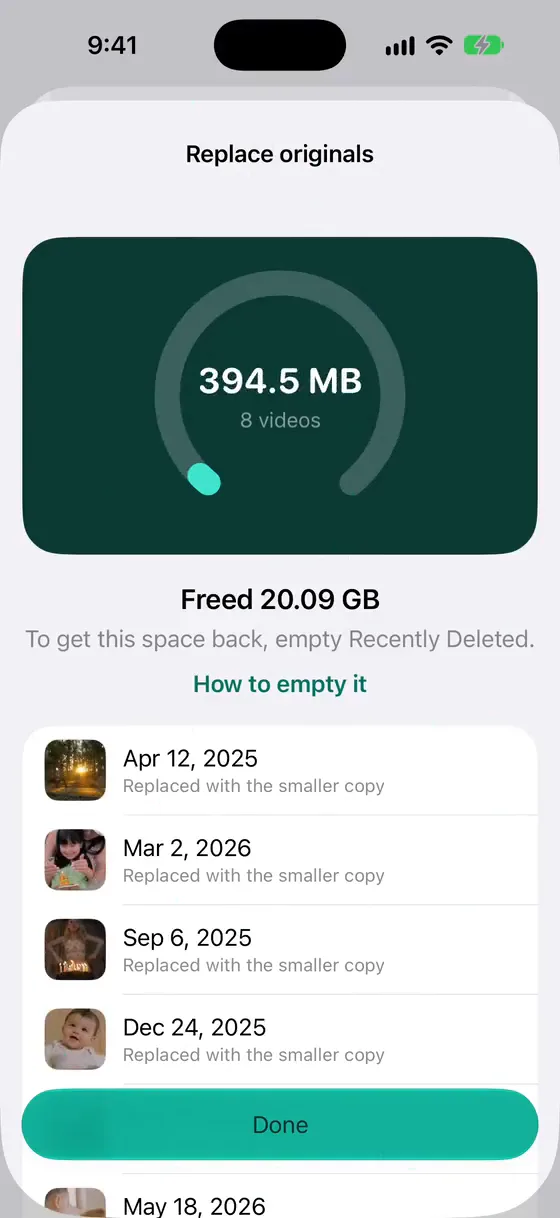
If the number doesn’t move after you empty the album, read deleted videos but iPhone storage still full. For the full list of what fills a phone with video, see iPhone storage full of videos.
Emptie is free, with nothing to buy. It’s in a public beta on TestFlight and coming soon to the App Store, and you can join the beta to try it on your own library.
Frequently asked questions
Can I free up iPhone storage without deleting photos or videos?
You can keep every video, though not always every original file. Optimize iPhone Storage keeps the full video in iCloud. Compressing keeps the video as a smaller file and deletes the original, which stays in Recently Deleted for 30 days. Copying to a computer keeps the full file, but you still have to delete it from the iPhone to free space there.
Does compressing a video delete the original?
With Emptie, the original is deleted only after its compressed copy is saved to your library and checked. The check confirms that the copy plays, its length matches and its details arrived. You confirm once, and the original then goes to Recently Deleted for 30 days.
Will moving videos to a computer free space on my iPhone?
Only after you delete them from the iPhone and empty Recently Deleted. With iCloud Photos on, the delete also removes the videos from your other devices, so check the copy on the computer or drive first.
What if my iCloud storage is full?
Optimize iPhone Storage needs room in iCloud for the full-size videos, so it won’t help. Make room in iCloud first, then compress, or copy the videos to a computer or drive before you delete them. See iCloud storage full of videos.