4K or 1080p on iPhone: which should you record?
Film 4K at 30 fps if you may crop, zoom or watch on a big screen, and 1080p if you mostly watch on a phone or share clips. Keep High Efficiency unless a device can't play HEVC. A 4K video you've already recorded can be made smaller later.
On this page
The short answer
For most people, record in High Efficiency. Use 4K at 30 fps if you may crop, zoom or watch on a big screen later. Use 1080p if you mostly watch on your phone or send clips to friends. Choose 4K at 60 fps only for fast motion, because it takes the most space short of 4K at 120 fps: about 26 GB an hour by Apple’s own estimate in Settings.
Key Takeaways
- Film 4K at 30 fps for keepsakes and footage you may crop. Film 1080p for phone viewing and sharing.
- 4K at 60 fps takes nearly seven times the space of 1080p at 30 fps, by Apple’s estimates in Settings.
- From 1080p up, High Efficiency (HEVC) files are about half the size of Most Compatible (H.264) files at the same setting.
- HDR video needs High Efficiency. Apple’s iMovie guide advises turning HDR off for the most devices.
- A 4K video you already have can be made smaller later. One 5-minute 4K Dolby Vision clip went from 2.18 GB to 323 MB with Emptie.

Where to find the settings
Two settings decide the format, and both are in the Settings app.
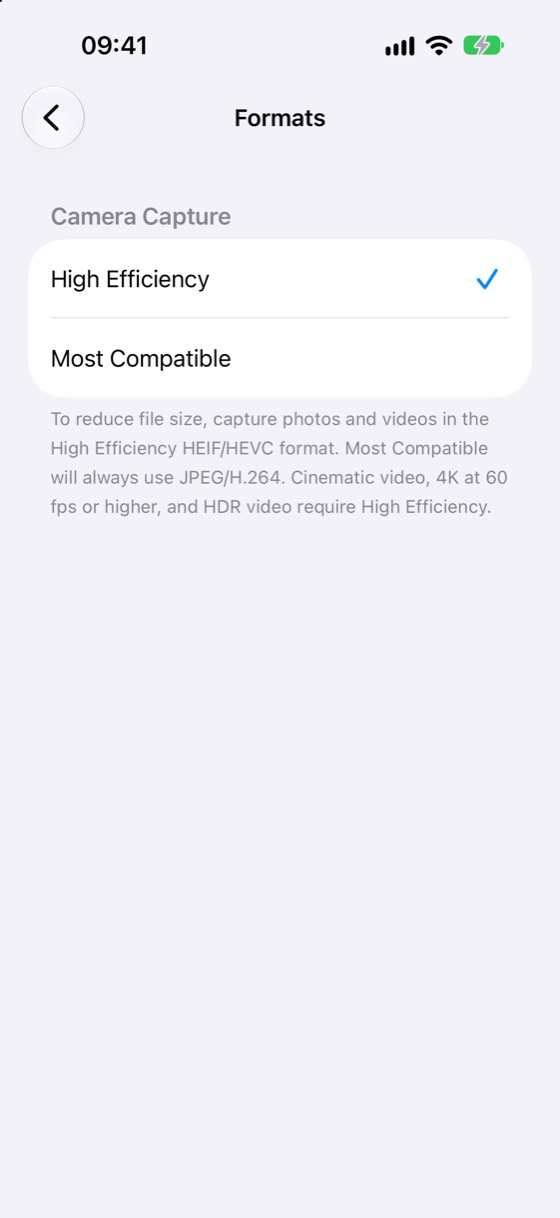
Formats. Open Settings, tap Camera, then tap Formats. High Efficiency records HEIF photos and HEVC video. Most Compatible records JPEG and H.264. Apple says that under Most Compatible, “All new photos and videos will now use JPEG or H.264 format” (Apple Support, Using HEIF or HEVC media on Apple devices, published 5 December 2025). The same screen notes that 4K at 60 fps and HDR video need High Efficiency.
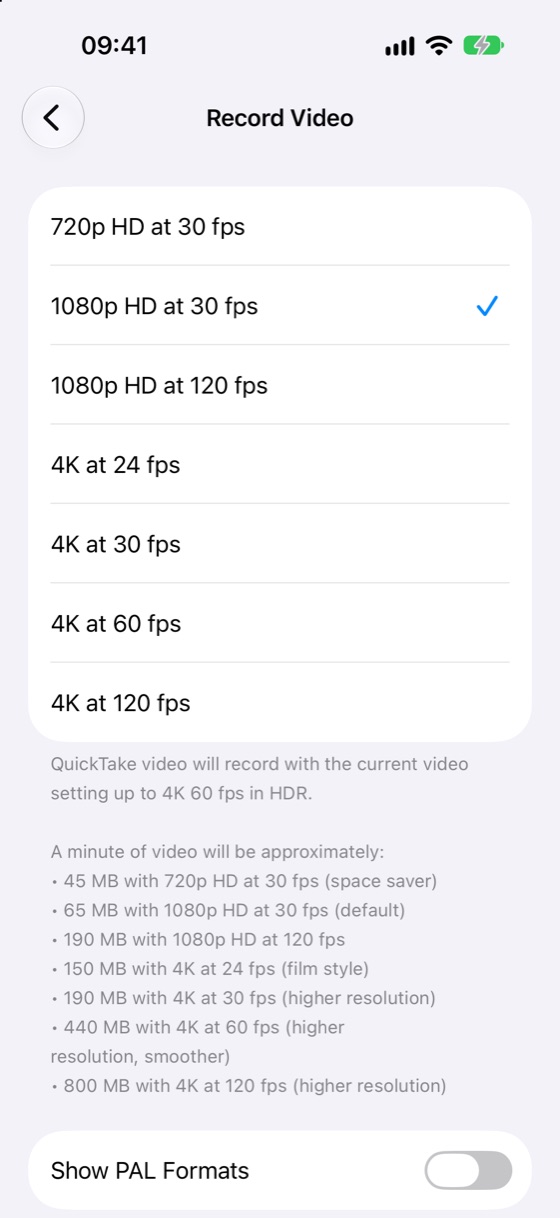
Record Video. Open Settings, tap Camera, then tap Record Video. Here you choose the resolution and frame rate, and you can turn HDR Video on or off. Apple’s page on changing video recording settings describes this path (Apple Support, Change video recording settings on iPhone).
The Camera app. In Video mode, the resolution and frame rate values sit at the top of the screen. Tap one to see what your iPhone offers and pick another (Apple Support, Record a video with your iPhone camera). The list shows only what your model records.
iOS 26 and iOS 27. Emptie needs iOS 26 and an iPhone 11 or later. The screens here are from iOS 27.1. If your menus on iOS 26 look different, look for the same names under Settings › Camera.
What each setting costs in storage
Apple’s page on compressing video gives 70 to 105 MB for one minute at 1080p, the default setting for the iPhone camera (Apple Support, Compress a video on iPhone, published 29 July 2026). That is 4.2 to 6.3 GB an hour.
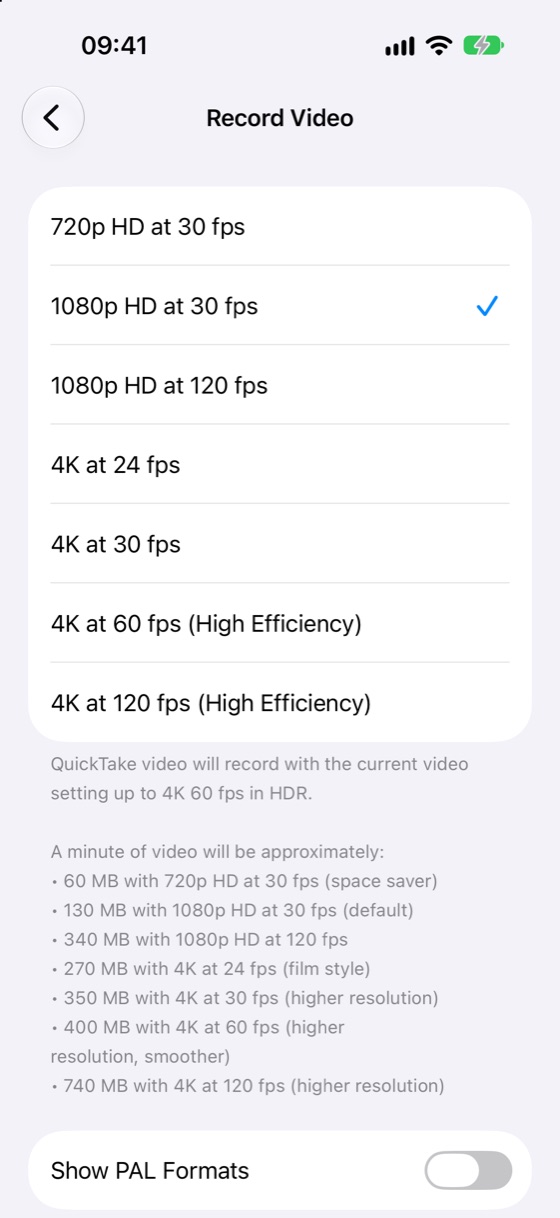
For every recording setting, the most current figures are Apple’s own estimates. Settings › Camera › Record Video shows “a minute of video will be approximately” a size for each setting.
On a current iPhone it lists 65 MB for 1080p at 30 fps, 190 MB for 4K at 30 fps and 440 MB for 4K at 60 fps in High Efficiency. Under Most Compatible it lists 130 MB and 350 MB for the first two. We captured those screens on 29 October 2026. The chart multiplies each figure by 60.
- HEVC (High Efficiency)
- H.264 (Most Compatible)
Three things stand out:
- 4K at 30 fps takes about 11.4 GB an hour in High Efficiency, nearly three times 1080p at 30 fps.
- 4K at 60 fps takes about 26 GB an hour, more than twice 4K at 30 fps.
- 4K at 24 fps, the film style, takes about 9 GB an hour. Most Compatible takes about twice as much at 1080p and 4K at 30 fps.
Apple’s compressing page gives more for 1080p, 70 to 105 MB, than the Settings estimate of 65 MB a minute. Both are estimates, so check one minute on your own phone. Use the Settings figures for planning. For how many minutes fit on a 128 GB phone, see how much storage 4K video takes on iPhone.
When 4K is worth it
Choose 4K when the footage is hard to repeat, or when you want the choice later.
- A big screen. A TV or large monitor shows detail that a phone’s screen can hide.
- Cropping and zoom. A 4K frame has four times the pixels of a 1080p frame. If you crop to a smaller part of it, the result can still be 1080p.
- Keepsakes. A first birthday, a school play or a trip can’t be shot again.
Pick 60 fps only for fast movement, such as a child running, a pet or a match. It makes motion smoother and costs more than twice as much as 30 fps. The Formats note says 4K at 60 fps needs High Efficiency. Under Most Compatible it still appears, labelled High Efficiency, and records in HEVC.
When 1080p is enough
1080p is enough when the video will be watched on a phone or sent to someone else’s phone.
- Phone viewing. Apple says that resolutions of 1080p or lower and frame rates of 60 fps or lower “are more broadly compatible with older devices” (Apple Support, Using HEIF or HEVC media on Apple devices).
- Sharing. If a clip is only for a message or a post, Apple’s iMovie export guide suggests 540 for social media and 360 for text messages.
- Tight space. 1080p at 30 fps takes about 3.9 GB an hour in High Efficiency, about a seventh of 4K at 60 fps.
HDR and Dolby Vision
HDR records a wider range of light and colour than standard video. Dolby Vision is one form of HDR. Apple’s iPhone 14 Pro page lists “HDR video recording with Dolby Vision up to 4K at 60 fps,” and its iPhone 17 Pro page adds 4K Dolby Vision at 100 and 120 fps on the main camera.
Compatibility is the catch. Apple’s iMovie guide says, when you share a movie, “For compatibility with the most devices, turn off this option,” meaning HDR. HDR Video is also switched on or off in Settings, under Camera, then Record Video.
A simple rule works for most people. Leave HDR on for a TV or a newer Apple device. Turn it off for a video that will go to many different devices. Emptie’s compressed copies keep HDR and Dolby Vision, so a Dolby Vision clip stays Dolby Vision after it gets smaller.
Make a 4K video smaller later
A setting changes only new recordings. A 4K clip you already have can be made smaller at any time. Our test clip was a 5-minute 4K Dolby Vision video at 2.18 GB. Emptie compressed it to 1080p HEVC at 8 megabits per second, and the copy was 323 MB, 85% smaller, with no visible loss on the phone’s own screen. A bigger screen may show what the phone’s screen hides.
Emptie deletes an original only after its compressed copy is saved and checked, and after one iOS confirmation. The original then waits in Recently Deleted for 30 days. For the steps, see how to compress video on iPhone. For the quality trade-off, read whether compressing video loses quality.
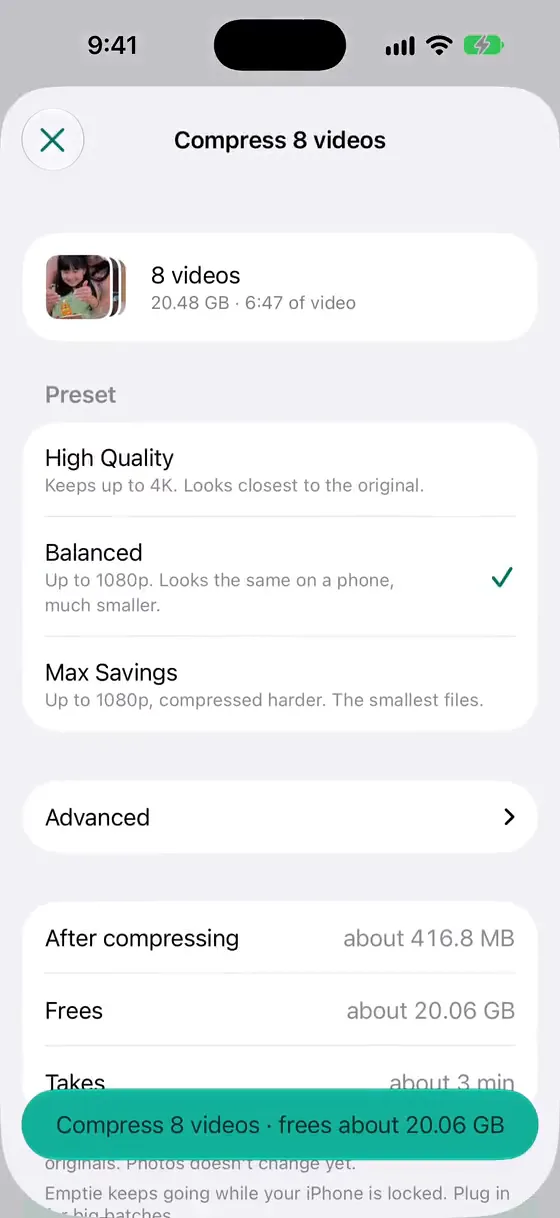
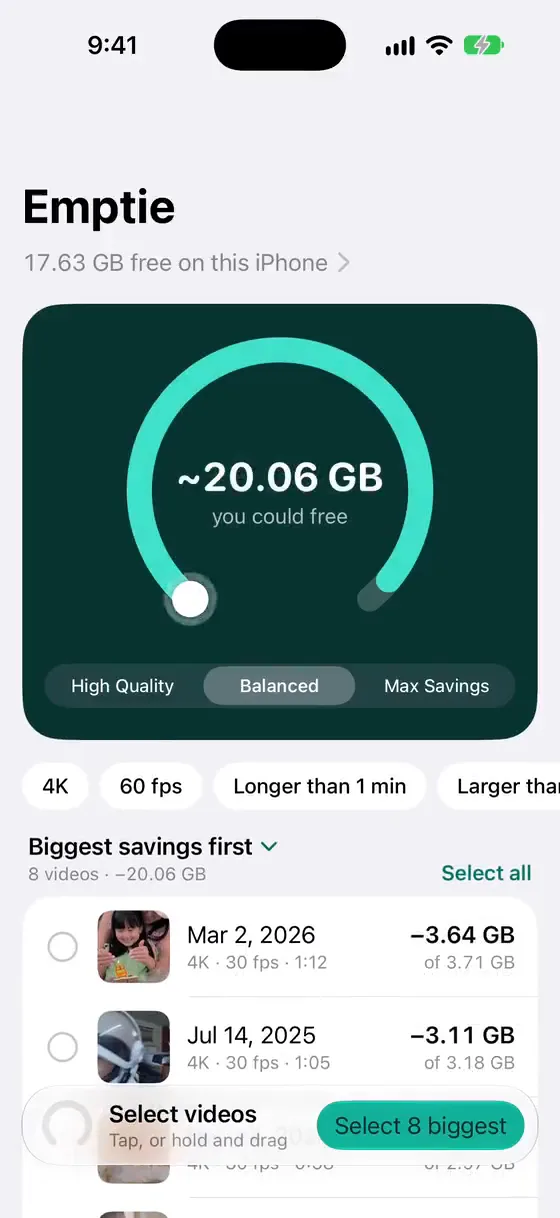
The Emptie compress sheet offers three presets. High Quality keeps up to 4K and looks closest to the original. Balanced goes up to 1080p and is much smaller; in our test it looked the same on the phone’s screen. Max Savings also goes up to 1080p, compressed harder, for the smallest files. The Library lets you filter by 4K and by 60 fps, so you can find the clips that take the most room.
Which setting to pick
| If you mostly… | Record… | Why |
|---|---|---|
| Film family, trips or keepsakes you may crop later | 4K at 30 fps, High Efficiency | Room to crop and a big screen, for about 11 GB an hour |
| Film fast movement, such as sport or pets | 4K at 60 fps, High Efficiency | The smoothest motion, for the most space. Use 4K at 30 fps if space is tight |
| Watch on your phone and send clips to friends | 1080p at 30 fps, High Efficiency | About 3.9 GB an hour. Apple says 1080p at 60 fps or lower is more broadly compatible |
| Send to devices that can’t play HEVC | 1080p at 30 fps, Most Compatible | H.264 is about twice the size, about 7.8 GB an hour |
| Want HDR or Dolby Vision for a TV | 4K at 30 or 60 fps, High Efficiency, HDR on | HDR needs High Efficiency. Check that the TV plays it |
Frequently asked questions
Should I record in 4K on iPhone?
Yes, if you may want to crop, zoom or watch on a big screen later, or if the footage is hard to repeat. Use 4K at 30 fps for most of it. If you can’t decide, record 4K and make a smaller copy later. That keeps the most options open, and Emptie can make the copy for you.
Is High Efficiency better than Most Compatible?
For storage, yes. At the same setting, High Efficiency files are about half the size: 65 MB a minute against 130 MB for 1080p at 30 fps, on Apple’s own estimate. Most Compatible uses H.264, which plays on more devices. If a device you use can’t play HEVC, choose Most Compatible for that video. The Formats note says 4K at 60 fps and HDR video need High Efficiency.
Can I change a 4K video to 1080p after I record it?
Yes. Emptie can replace it with a smaller copy, keeping the date, location, Favorite and albums, after checking the copy. You can also export a smaller copy in iMovie. Either way, the 4K original is the only copy that keeps the full detail.
Does iOS 27 change these settings?
The Formats and Record Video menus above are from iOS 27.1. If your iOS 26 menus look different, look for the same names under Settings › Camera.