iCloud storage full of videos? What to do
Check what uses your iCloud storage first. With iCloud Photos on, a deleted video goes from every device, while Optimize iPhone Storage only frees space on the phone. Emptie skips videos that are only in iCloud, so download those to your iPhone first.
On this page
- The short answer
- Step 1: See what is using your iCloud storage
- Step 2: Know what deleting does in iCloud
- Step 3: Optimize iPhone Storage frees your iPhone, not iCloud
- What each iCloud+ plan costs
- Buy more space, or make the videos smaller?
- Get the videos onto your iPhone first
- Make the videos smaller in a synced library
- Keep the originals on a computer or drive
- The order to work in
- Frequently asked questions
The short answer
If iCloud is full because of videos, you have three choices for each large clip. You can delete it, buy more iCloud storage, or keep it and make a smaller copy. Start by checking what uses your iCloud space, so you know the videos are the cause. Then decide clip by clip. With iCloud Photos on, deleting a video removes it from every device that uses the same Apple Account, so check before you delete anything.
Emptie makes smaller copies of the videos on your iPhone and replaces the originals. In a library that syncs with iCloud Photos, a smaller copy can also take less iCloud space. The details below say what Apple’s rules support, and what they don’t promise.
Key Takeaways
- Open Settings, tap your name, then iCloud, to see what uses your storage. The steps are in Step 1.
- With iCloud Photos on, a video you delete on one device is deleted on every device with the same Apple Account.
- Items in Recently Deleted don’t count toward iCloud storage, so a deleted video frees its iCloud space as soon as it moves there.
- Optimize iPhone Storage frees space on your iPhone. The full-size videos stay in iCloud.
- In the US, the 50 GB plan costs $0.99 a month, about $11.88 a year, and the 200 GB plan $2.99 a month, about $35.88 a year.
Step 1: See what is using your iCloud storage
On your iPhone, open Settings, tap your name, tap iCloud, then tap Storage or Manage Account Storage. Apple’s page on managing iCloud storage gives both names. It also says you can check your usage on iCloud.com (Apple Support, Manage your iCloud storage on your Apple device, published 14 September 2026).
That screen shows the totals. Apple’s page doesn’t describe a breakdown of your videos beyond it, so read the list. Backups often take a large share. Tap Backups, then your device, to see them. Turning off an app’s backup also removes that app’s data from iCloud (Apple Support, Manage your iCloud storage), so read the warning before you turn anything off.
Step 2: Know what deleting does in iCloud
With iCloud Photos on, deleting a photo or video on one device deletes it on every other device signed in with the same Apple Account. Apple says so on the same page (Apple Support, Manage your iCloud storage on your Apple device).
A deleted item goes to Recently Deleted. It stays there for 30 days, then it is permanently deleted and can’t be recovered (Apple Support, How to recover deleted photos, published 15 September 2025). Apple’s page on iCloud storage adds that “Items in Recently Deleted don’t count towards your iCloud storage” (Apple Support, Manage your iCloud storage, published 14 September 2026). So a deleted video frees its iCloud space as soon as it moves there, not 30 days later. If the phone’s storage doesn’t change after a delete, why deleted videos may not free space right away explains the wait.
One rule can catch you out. If your iCloud is already over its limit, the device immediately removes any photos and videos you delete, and they can’t be recovered from Recently Deleted (Apple Support, Manage your iCloud storage). Make room before you delete anything.
Step 3: Optimize iPhone Storage frees your iPhone, not iCloud
Apple’s page on managing photo and video storage, published 1 October 2026, says that when Optimize iPhone Storage is on, “full-resolution photos and videos are stored in iCloud.” Smaller copies are kept on the phone when it needs room (Apple Support, Manage your photo and video storage). The option makes room on your iPhone. The full-size videos stay where they were.
| Choice | Space on your iPhone | Space in iCloud |
|---|---|---|
| Turn on Optimize iPhone Storage | Frees space | No change: full-size copies stay in iCloud |
| Delete a video | Comes back once the video leaves Recently Deleted | Stops counting when it moves to Recently Deleted |
| Make a smaller copy and replace the original | Frees the difference in size | The smaller copy takes the original’s place |
What each iCloud+ plan costs
Apple’s iCloud page lists five paid plans in the US, billed monthly: 50 GB at $0.99, 200 GB at $2.99, 2 TB at $9.99, 6 TB at $29.99 and 12 TB at $59.99 a month (Apple, iCloud, checked 29 October 2026). The page shows monthly prices only. The yearly figures in the table are the monthly price times 12. Other countries have their own prices.
| Plan | A month | A year |
|---|---|---|
| 50 GB | $0.99 | $11.88 |
| 200 GB | $2.99 | $35.88 |
| 2 TB | $9.99 | $119.88 |
| 6 TB | $29.99 | $359.88 |
| 12 TB | $59.99 | $719.88 |
Going from 50 GB to 200 GB adds $24 a year. Going from 200 GB to 2 TB adds $84 a year more.
Buy more space, or make the videos smaller?
Buying more is reasonable when most of what you keep is photos and short clips, when you want every video at full size, and when the yearly cost is one you are happy to pay.
Making videos smaller pays off when you keep many long 4K clips. Our example is the 5-minute 4K Dolby Vision video that went from 2.18 GB to 323 MB:
- 100 clips of 5 minutes each take about 218 GB at full size. The 2 TB plan is the smallest that holds them, at $119.88 a year.
- As compressed copies of 323 MB each, the same 100 clips take about 32 GB. The 50 GB plan, at $11.88 a year, holds them with about 18 GB left for everything else.
Your clips will differ. The 323 MB figure is for one clip, recorded one way. How much storage iPhone video takes shows how the size changes with resolution and frame rate.
Get the videos onto your iPhone first
Emptie skips videos that are only in iCloud. Their full-quality file is in iCloud, and only a preview is on the phone. The Library shows how many there are and how much space they take. Emptie also skips Slo-mo, Cinematic and Spatial videos, videos that would shrink by less than about 20%, and videos in Protected Albums.
So an iCloud-only video has to be on your iPhone before Emptie can compress it. Apple describes the phone’s copies as the smaller ones when Optimize iPhone Storage is on. Apple’s page on iCloud Photos says that “Photos and videos that you keep in iCloud Photos use your iCloud storage and your device storage” (Apple Support, Set up and use iCloud Photos, published 14 September 2026), so full-size copies also fill the phone. Go to Settings, tap your name, tap iCloud, then tap Photos. In iOS 27, Apple’s page also has an iPhone Storage step before the Optimize option (Apple Support, Manage your photo and video storage). We haven’t checked the iOS 26 screens against Apple’s pages, so the names may differ on your phone.
Make the videos smaller in a synced library
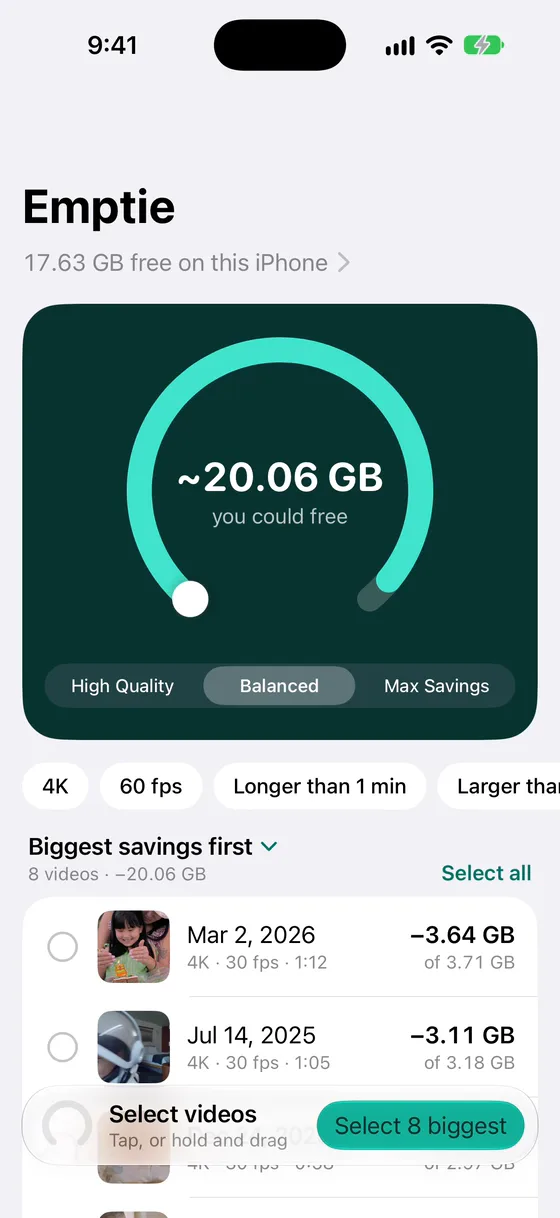
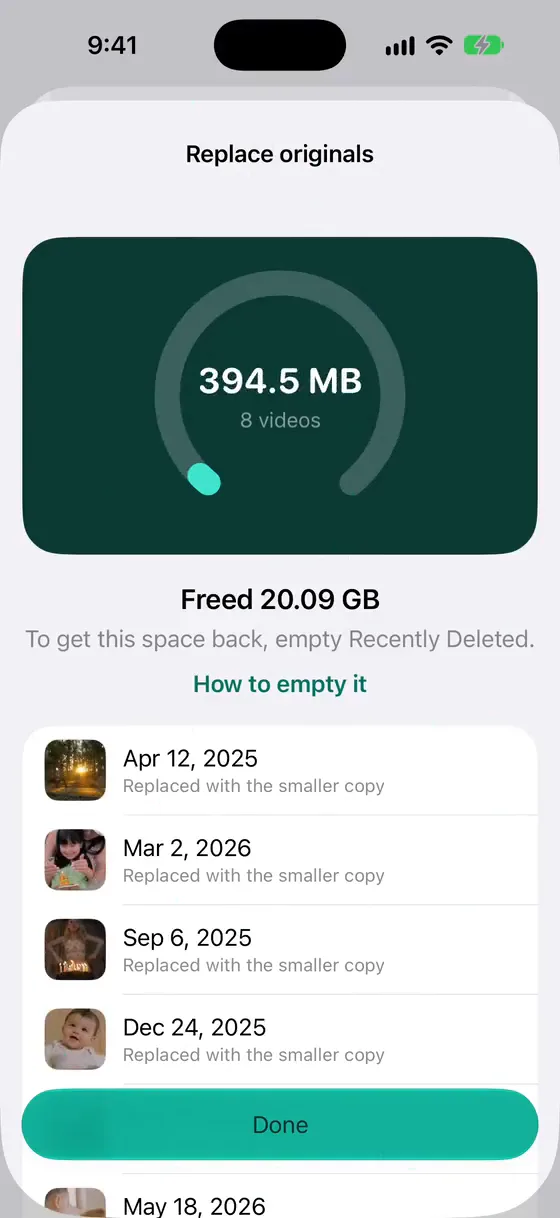
Emptie makes a smaller copy of each video on your iPhone and keeps the copy inside Emptie until it is saved to your library and checked. Only then does Emptie delete the original, and only after you confirm in Review with one iOS prompt. The original goes to Recently Deleted for up to 30 days. For the other ways to make a smaller copy, see how to compress video on iPhone.
If the library syncs with iCloud Photos, the change reaches your other devices too. The smaller copy uploads, and the original is removed everywhere. Items in Recently Deleted don’t count toward iCloud storage (Apple Support), so once the smaller copy has uploaded, it is what takes up iCloud space. The upload has to finish first, so check Manage Account Storage before and after a Batch on your own account.
Emptie is in a free public beta on TestFlight and is coming soon to the App Store. You can join the beta.
Keep the originals on a computer or drive
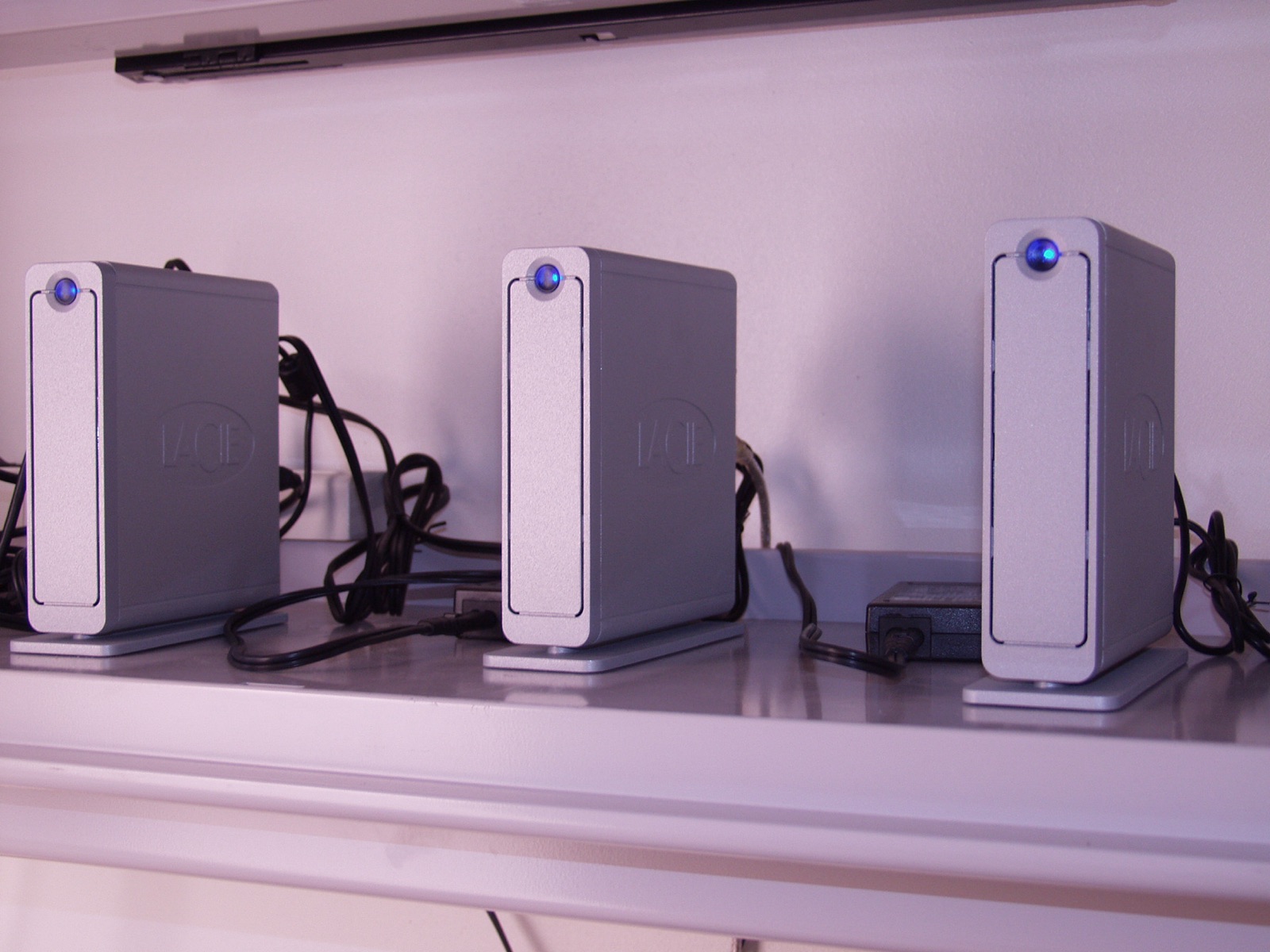
Before a Batch, copy the videos you want to keep at full size to a computer or an external drive. Apple’s page on moving photos and videos says: “If you don’t use iCloud Photos or your iCloud storage is full, connect your device to your Mac to import photos and videos” (Apple Support, Transfer photos and videos from your iPhone or iPad to your Mac or PC, published 14 September 2026). So a full iCloud doesn’t stop you copying videos. A cable does the job.
.jpg)
Do this before you empty Recently Deleted. After 30 days a deleted video can’t be recovered, so a copy on a drive is the one you can still open.
The order to work in
- Open Settings, tap your name, tap iCloud, then tap Storage or Manage Account Storage. Note the total and the Backups entry (Apple Support, Manage your iCloud storage on your Apple device).
- If iCloud is at its limit, make room first: delete clips you don’t need and empty them from Recently Deleted, or move some videos to a computer.
- In Photos, find the longest 4K clips. How to find your biggest videos on iPhone explains how.
- For each clip, choose one: keep it at full size, make a smaller copy, copy it to a drive, or delete it. Put any iCloud-only clip on your iPhone first.
- Empty Recently Deleted once you are sure. Check the iCloud number again.
Frequently asked questions
Does deleting a video in Photos free iCloud space?
With iCloud Photos on, the video is deleted on every device that uses the same Apple Account. Items in Recently Deleted don’t count toward iCloud storage, so the space comes back as soon as the video moves there (Apple Support, Manage your iCloud storage).
Does Optimize iPhone Storage free iCloud space?
No. Apple says full-resolution photos and videos are stored in iCloud when the option is on. It frees space on the iPhone only.
Why does Emptie skip some of my videos?
Emptie skips videos that are only in iCloud. It also skips Slo-mo, Cinematic and Spatial videos, because compressing them would remove their special features. It skips videos that would shrink by less than about 20%, and any video in a Protected Album. Put an iCloud-only video on your iPhone first, and Emptie can consider it.
Is it worth buying more iCloud storage?
It is when you want every video at full size and the yearly price fits your budget. Going from 200 GB to 2 TB adds $84 a year. If you mostly keep long 4K clips, a smaller copy may cost less over time, as the example above shows.