High Efficiency vs Most Compatible on iPhone: what it changes
Apple estimates 65 MB a minute for 1080p at 30 fps in High Efficiency, and 130 MB in Most Compatible (H.264). 4K at 60 fps and HDR video need High Efficiency. Keep it unless a device you use can't play HEVC.
On this page
- The short answer
- Where the setting is
- What the two formats change for video
- What each setting costs per minute
- What the formats mean for photos
- The two formats side by side
- Sharing and transfers
- Playing HEVC on Windows and Android
- Which setting to keep
- Why Emptie writes HEVC only
- Frequently asked questions
- Where this leaves you
The short answer
High Efficiency is the iPhone setting that records video as HEVC (also called H.265) and photos as HEIF. Most Compatible records video as H.264 and photos as JPEG. Keep High Efficiency unless a device you use can’t play HEVC. At 1080p and 30 fps, Apple’s own estimate is 65 MB a minute in High Efficiency and 130 MB in Most Compatible. 4K at 60 fps and HDR video need High Efficiency. For how to choose a resolution and frame rate, see 4K or 1080p on iPhone.
Key Takeaways
- High Efficiency records HEVC (H.265) video and HEIF photos. Most Compatible records H.264 video and JPEG photos.
- At 1080p and 30 fps, Apple estimates a minute at 65 MB in High Efficiency and 130 MB in Most Compatible.
- 4K at 60 fps and HDR video require High Efficiency, according to the Formats screen on our test iPhone. Apple’s web page doesn’t list them.
- Many Windows PCs need the HEVC Video Extensions before they play HEVC video. Android support depends on the phone’s model.
- Keep High Efficiency unless a device you use can’t play HEVC. The setting changes only new recordings.
Where the setting is
Open Settings, tap Camera, then tap Formats, and pick High Efficiency or Most Compatible. Apple’s support article on HEIF and HEVC media (Apple Support, Using HEIF or HEVC media on Apple devices, published 5 December 2025) describes both options. Under Most Compatible, Apple says, “All new photos and videos will now use JPEG or H.264 format.” The Formats screen lists two exceptions, shown below.
The setting changes what the camera records from then on. It doesn’t convert the videos and photos you already have.
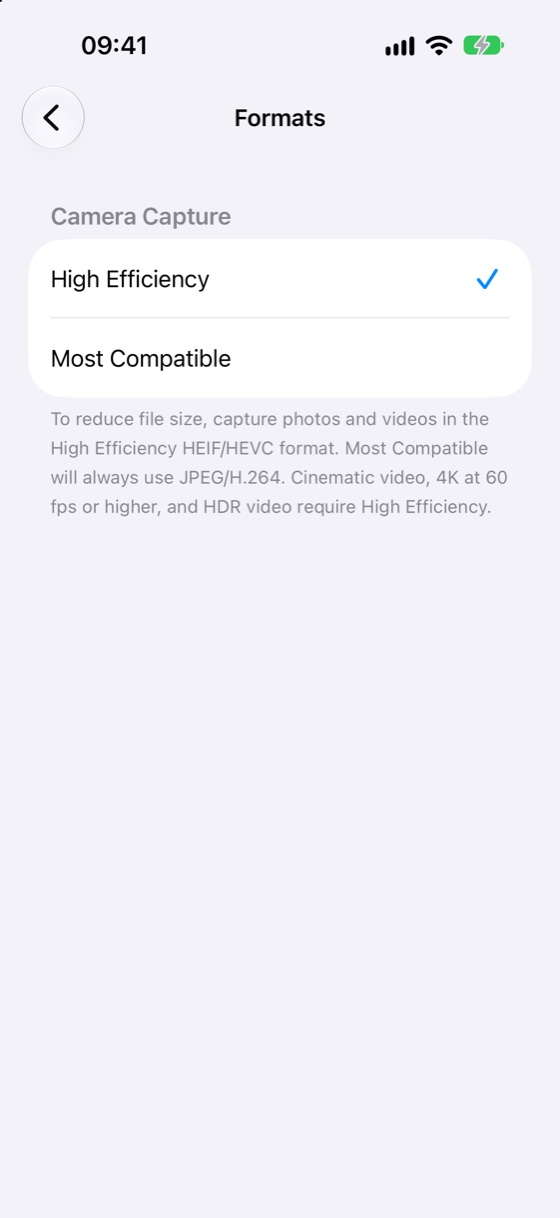
The Formats screen also notes that 4K at 60 fps and HDR video require High Efficiency. Apple’s estimate for each recording setting sits under the list in Settings › Camera › Record Video (Apple Support, Change video recording settings on iPhone).
What the two formats change for video
HEVC, also called H.265, is the newer video format. H.264, also called AVC, is the older one that Most Compatible uses. HEVC is designed to pack the same video into less data than AVC. The per-minute figures below show what that difference means on an iPhone.
Choosing HEVC doesn’t change resolution or frame rate. A 4K clip at 30 fps is 4K in either format. What changes is how the file is packed, which is why the same clip comes out smaller. The name “High Efficiency” describes that: the same video takes less space. Apple’s figures measure file size, not picture quality, so they can’t tell you how a clip will look.
High EfficiencyThe default
- Video in HEVC, also called H.265
- Photos in HEIF (.HEIC files)
- About half the size at 1080p and 4K at 24 or 30 fps
- Needed for 4K at 60 fps and HDR video
Most CompatibleFor devices that can’t play HEVC
- Video in H.264, also called AVC
- Photos in JPEG
- Plays on more older devices and software
- No HDR video
The trade-off is support. Decoding HEVC takes more work than decoding H.264, so older devices and older software are where HEVC causes trouble. They may lack the hardware or software support the file needs.
What each setting costs per minute
These are Apple’s estimates from Settings › Camera › Record Video on iOS 27.1:
- 1080p at 30 fps: 65 MB a minute in High Efficiency, 130 MB in Most Compatible.
- 4K at 24 fps: 150 MB in High Efficiency, 270 MB in Most Compatible.
- 4K at 30 fps: 190 MB in High Efficiency, 350 MB in Most Compatible.
- 4K at 60 fps: 440 MB in High Efficiency. The Most Compatible list shows 400 MB for this setting but labels it High Efficiency, so plan with 440 MB.
- High Efficiency (HEVC)
- Most Compatible (H.264)
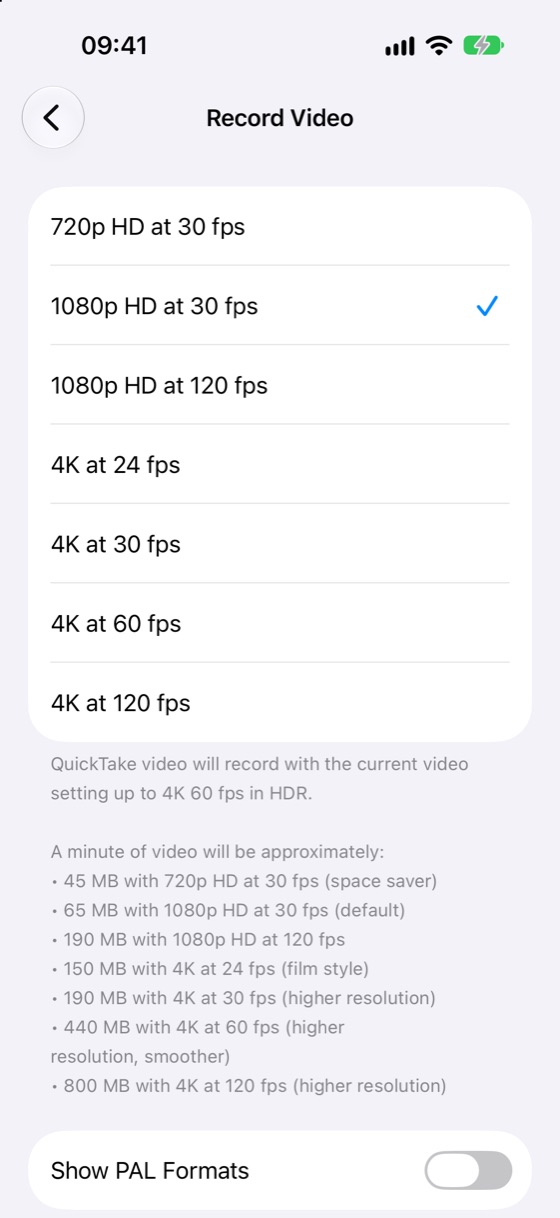
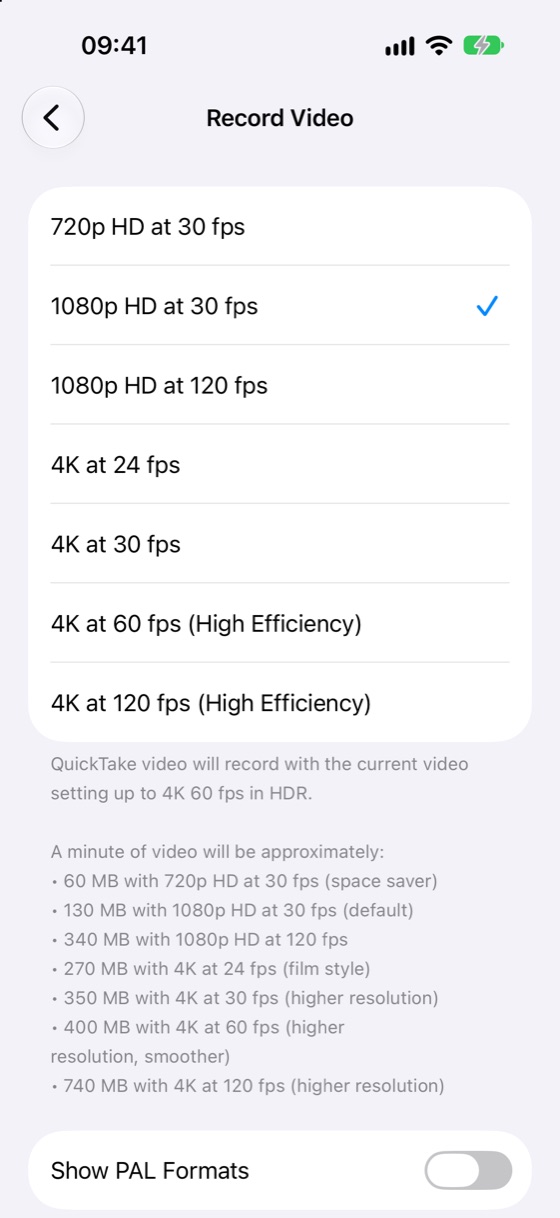
At 1080p and at 4K at 24 and 30 fps, High Efficiency files are about half the size of Most Compatible files at the same setting. At 4K at 60 fps the two lists are close, because the Most Compatible list labels that setting High Efficiency. These are typical figures. Apple’s compression guide (published 29 July 2026) gives 70 to 105 MB a minute for 1080p, and a scene with lots of motion takes more. Check one minute on your own phone before a long shoot. For what these numbers add up to on a 128 GB phone, see how much storage iPhone video takes.
What the formats mean for photos
High Efficiency saves photos as HEIF, which has the file extension .HEIC. Most Compatible saves them as JPEG. We haven’t measured photo sizes for this post, so the photo side here is about the format, not the file size. Windows also needs an extension to open many HEIC photos, the same kind of add-on it needs for HEVC video.


The two formats side by side
Here is the comparison in one place.
| High Efficiency | Most Compatible | |
|---|---|---|
| Video format | HEVC (H.265) | H.264 (AVC) |
| Photo format | HEIF (.HEIC files) | JPEG |
| 1080p at 30 fps, per minute | 65 MB | 130 MB |
| 4K at 30 fps, per minute | 190 MB | 350 MB |
| 4K at 60 fps | Records, 440 MB a minute | Labelled High Efficiency, 400 MB a minute |
| HDR and Dolby Vision video | Available | Not available |
| Windows | Many PCs need the HEVC Video Extensions | Usually plays without an extra codec |
| Android | Most recent phones play it, depending on the model | Widely supported |
| Choose it when | You want the smallest files, or you need 4K at 60 fps or HDR | A device you use can’t play HEVC |
Sharing and transfers
A video’s format matters most when it leaves your iPhone. When you share a video, iPhone may convert it to a format more devices support, so the copy that arrives can be H.264 rather than HEVC. Whether that happens depends on the app and the destination. We haven’t confirmed the rules on Apple’s pages.
For copies to a computer over a cable, Settings › Photos › Transfer to Mac or PC controls the format. Automatic may convert files for the computer, and Keep Originals keeps them as recorded. Apple’s transfer article doesn’t describe these two options, so read the description on your own iPhone.
Many messaging apps and email services also compress large videos on their own, so the file that arrives can differ from the one you sent, whatever the camera setting. The quickest check is to send one video to the device or app you’ll use, then play it there.
- Recorded in HEVCWith High Efficiency on.
- You share itiPhone may convert it to a format more devices support, such as H.264.
- The app may compress itMany messaging apps and email services shrink large videos on their own.
- Play it where it landsThe quickest check: send one video, then play it there.
Playing HEVC on Windows and Android
Windows
Many Windows PCs need an extra codec before they play HEVC video. Microsoft sells the HEVC Video Extensions in the Microsoft Store, and some PCs come with a version from their maker (HEVC Video Extensions from Device Manufacturer). Without one, an HEVC video may not open at all. Some third-party players, such as VLC, play HEVC without the Microsoft extension. H.264 usually plays without one.
Android
Android’s developer documentation lists HEVC decoding from Android 5.0 onward, so most recent phones can play it. The app you use and the phone’s hardware decide what plays, so play one file in that app before you send a batch.
iPhone and MacPlays
- Current Apple devices play HEVC without extra steps.
WindowsOften needs an add-on
- Many PCs need the HEVC Video Extensions from the Microsoft Store.
- Some players, such as VLC, play HEVC without it.
AndroidDepends on the phone
- HEVC decoding is listed from Android 5.0 onward.
- The app and the phone’s hardware decide what plays.
Which setting to keep
Keep High Efficiency. It makes the smaller files, and 4K at 60 fps and HDR need it. Switch to Most Compatible only when a device you use can’t play HEVC, and switch back when you’re done.
Here is how that plays out for common cases:
Where will the video play?
- If: On your own phone or a MacKeep High EfficiencySmaller files, and 4K at 60 fps and HDR need it.
- If: On a TV or a Windows PCCheck the device firstIf it can’t play HEVC and you can’t add the extension, use Most Compatible for those clips.
- If: On a work system or a service you don’t controlTest one clipIf it rejects HEVC, record future clips in Most Compatible.
You can mix the two. Keep High Efficiency for most recordings, and switch only for a clip you know a device needs. Videos already recorded keep their format.
For one clip going to an older device, a 1080p copy can be the easier route. Apple says that resolutions of 1080p or lower and frame rates of 60 fps or lower are “more broadly compatible with older devices.”
Why Emptie writes HEVC only
The app’s compressed copies are always HEVC. H.264 output is not in the first release. Staying with HEVC keeps HDR and Dolby Vision on the copy, so a 4K Dolby Vision clip stays Dolby Vision after it gets smaller.
Compatibility is the trade-off. A 4K copy plays on fewer devices than a 1080p copy, and H.264 plays on more devices than HEVC does. If a copy won’t play where you need it, the original sits in Recently Deleted for up to 30 days after replacement, so you can restore it. For the steps, read how to compress video on iPhone. For the quality side, read whether compressing video loses quality.
- You delete itIt moves to Recently Deleted and still takes space.
- Up to 30 daysRecover it from Recently Deleted any time.
- Removed for goodAfter 30 days, or when you empty the album. Now the space comes back.
Frequently asked questions
Is HEVC the same as High Efficiency?
Not quite. High Efficiency is the iPhone setting. HEVC is the video format it records in, and H.265 is another name for the same format. For photos, the same setting uses HEIF.
Why won’t my iPhone video play on Windows?
A common cause is a missing HEVC codec on the PC. Install the HEVC Video Extensions from the Microsoft Store, or play the file in a player that decodes HEVC. If it still won’t play, your computer can’t decode HEVC. For clips you plan to send that way, record in Most Compatible.
Can I turn HEVC off on iPhone?
Yes. Open Settings, tap Camera, then tap Formats, and pick Most Compatible. From then on, new photos are JPEG and most new video is H.264. Two things stay HEVC: 4K at 60 fps, which Settings labels High Efficiency, and HDR video, which needs High Efficiency, so Most Compatible doesn’t give you HDR. Videos you already have keep their format.
Should I switch to Most Compatible to be safe?
Not for everything. High Efficiency files are about half the size at 1080p and at 4K at 24 or 30 fps, and 4K at 60 fps and HDR need it. Switch only for a device that can’t play HEVC, and switch back afterwards.
Where this leaves you
Keep High Efficiency, and look at the Formats screen once so you know what your iPhone records. The setting applies to new recordings only. For making a 4K clip smaller, see convert 4K to 1080p on iPhone.