Convert 4K to 1080p on iPhone: 3 ways and what each keeps
iMovie and the Shortcuts app make a 1080p copy and leave the 4K original in your library until you delete it. Emptie replaces the original with a checked 1080p copy and keeps the date, location, Favorite, Hidden status and albums. In our test, a 5-minute 4K Dolby Vision video went from 2.18 GB to 323 MB.
On this page
- The short answer
- Why 1080p is the usual target
- Option 1: Export a 1080p copy in iMovie
- Option 2: Run an Encode Media shortcut
- Option 3: Replace the 4K original with a 1080p copy in Emptie
- How the three routes compare
- What 1080p loses, and where you’ll see it
- Which route to pick
- Frequently asked questions
The short answer
To convert a 4K video to 1080p on iPhone, you can export a 1080p copy in iMovie, run an Encode Media shortcut, or let Emptie replace the 4K original with a 1080p copy. iMovie and the shortcut both make a new video and leave the 4K original in your library until you delete it. Emptie checks its copy first, then replaces the original and keeps the date, location, Favorite, Hidden status and albums.
Key Takeaways
- iMovie and the Shortcuts app make a 1080p copy and leave the 4K original in your library until you delete it yourself.
- Apple gives 70 to 105 MB a minute for a 1080p export in iMovie (Apple Support, published 29 July 2026).
- Emptie replaces the 4K original with a checked 1080p HEVC copy, and copies the date, location, Favorite, Hidden status and albums.
- HDR and Dolby Vision stay with Emptie’s copy. Apple’s iMovie guide suggests turning HDR off when a file must play on the most devices.
- In our test, a 5-minute 4K Dolby Vision video went from 2.18 GB to 323 MB, 85% smaller, with no visible loss on the phone’s screen.
- 1080p keeps less detail, which shows most on a large screen. Emptie never upscales a video back to 4K.
Why 1080p is the usual target
A 4K frame has four times the pixels of a 1080p frame, so a 1080p copy is much smaller. Apple’s Settings estimates put a minute of 4K at 60 fps at about 440 MB, and a minute of 1080p at 30 fps at about 65 MB, both in High Efficiency (how much storage iPhone video takes). Apple also says resolutions of 1080p or lower are “more broadly compatible with older devices” (Apple Support, Using HEIF or HEVC media on Apple devices, published 5 December 2025).
The cost is detail, and the sections below show where it appears. If you are still choosing a setting to record in, read 4K or 1080p on iPhone first. This guide is about a video you already have.
- 4K 3,840 × 2,160
- 1080p 1,920 × 1,080
Option 1: Export a 1080p copy in iMovie
iMovie is Apple’s free video app. An export makes a new video, so your 4K original stays where it is. The steps are in our how-to guide on compressing video:
- Open iMovie, then open the project that contains your video.
- Share the movie, then choose the output resolution. Apple’s iMovie sharing guide refers to a 1080p HD option, and its compression guide names 1080p HD as the default, with 720, 540 and 360 as lower choices.
- Finish the export from the screen that follows. Button names may differ on your iOS version.
Apple gives 70 to 105 MB a minute for 1080p, the default iPhone camera and iMovie export setting (Apple Support, Compress a video on iPhone, published 29 July 2026). That range is wider than the 65 MB a minute that Settings shows for recording, so check one minute of your own footage before you convert a library.
Apple’s iMovie sharing guide makes two points that matter here. It offers 60 fps only when more than half of the project’s media is 1080p or 4K at 60 fps. It also suggests turning off the HDR option when the file has to play on the most devices.
Apple’s pages we checked don’t say whether an iMovie export keeps the date, location, albums or Favorite status. Check the new copy’s details in Photos before you delete anything. Why a compressed video can lose its date or location lists what to look for.
Option 2: Run an Encode Media shortcut
The Shortcuts app has an action called Encode Media that re-encodes video. A shortcut for this takes the videos you select, encodes them, and saves the results to an album. The steps are in our how-to guide. We couldn’t find Apple documentation for the action’s options. Third-party guides describe a Size setting, and the labels may differ on your iOS version, so check them when you add the action.
The shortcut saves new copies, so the originals stay in your library until you delete them.
We haven’t measured an Encode Media copy. This guide gives no size for one, and we haven’t checked whether the copy keeps the date, location, Favorite, Hidden status, albums or HDR. Run the shortcut on one video first, then check that copy’s details in Photos before you run it on a whole selection.
- You select videos
- Encode Media re-encodes themSized by the action’s settings.
- Copies saved to an albumThe 4K originals stay until you delete them.
Option 3: Replace the 4K original with a 1080p copy in Emptie
Emptie compresses the videos you choose on the iPhone and replaces each Original with a Compressed Copy. For a 4K video, there are two ways to get 1080p. Balanced, the default Preset, goes up to 1080p, and High Quality keeps up to 4K. Advanced Settings lets you choose 1080p Resolution directly, with 4K, 1440p and 720p as the other options. Nothing is upscaled, so a setting higher than the Original’s keeps the Original’s value.
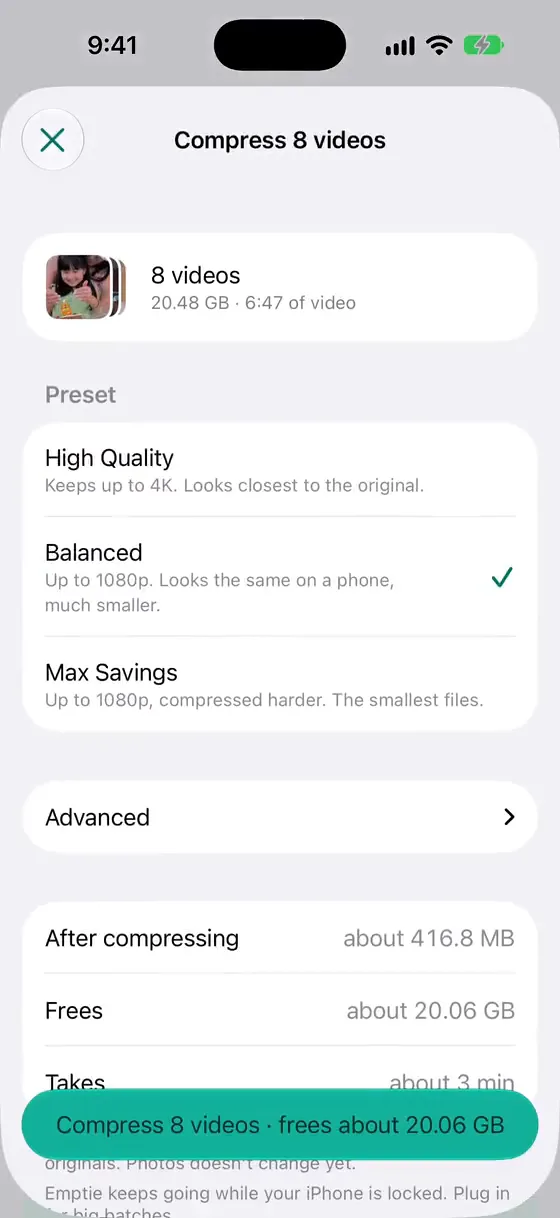
Every Compressed Copy is HEVC. A Preset keeps the Original’s frame rate, so 4K at 60 fps becomes 1080p at 60 fps. Sound is copied unchanged, and HDR and Dolby Vision stay. The copy carries over the date and time recorded, with its time zone, the location, Favorite, Hidden status and your own albums. Face tags, Memories and Shared Album links can’t be carried over, and Emptie tells you that once, before the first replacement. With limited Photos access, Emptie can’t read album membership, and Review says so before anything is replaced.
Before any Original is replaced, Emptie saves each copy to the library and checks that it plays, that its duration matches, and that its details arrived. If a check fails, that video keeps its Original. In Review, you can compare each copy with its Original at the same moment, and tick Keep original for any video you want to keep in 4K. One iOS confirmation covers the replacements. The Originals then go to Recently Deleted for 30 days, and the space comes back when you empty Recently Deleted.
- Compress on the iPhoneA smaller HEVC copy, made on the phone. Nothing is uploaded.
- Check the copySaved to the library, plays, the same length, with its date and place.
- You review itCompare each copy with its Original, and keep any Original you want.
- Originals to Recently DeletedFor 30 days. The space comes back when you empty it.
In our test, a 5-minute 4K Dolby Vision video went from 2.18 GB to 323 MB as 1080p HEVC at 8 megabits per second. That is 85% smaller, and it showed no visible loss on the phone’s screen. One clip is not a benchmark, and the saving depends on how the video was recorded.
How the three routes compare
iMovie exportOne project at a time
- A new 1080p video
- Date, location and favorites: not stated on Apple’s pages, so check in Photos
- Apple suggests turning HDR off for the most devices
- The 4K original stays until you delete it
Encode Media shortcutThe same steps, again and again
- New copies, sized by a setting in the action (third-party guides; Apple doesn’t document it)
- Date, location and HDR: not measured
- The 4K originals stay until you delete them
EmptieMany videos in one pass
- A checked 1080p HEVC copy replaces the Original after you confirm
- Keeps the date and time, location, Favorite, Hidden status and albums
- Keeps HDR and Dolby Vision
- The Original goes to Recently Deleted for 30 days
Only Emptie replaces the original in your library. With the other two routes, you choose when to delete the 4K video yourself.
What 1080p loses, and where you’ll see it
On a phone, a 1080p copy of a 4K video often looks the same. A big screen shows the difference more easily. The iPhone 14 Pro’s screen is 2556 pixels across in landscape, according to Apple’s iPhone 14 Pro tech specifications. A 4K frame is 3840 pixels across, so the phone already can’t show the full 4K detail on one screen. A 4K TV is also 3840 pixels across. A 1080p copy has to be scaled up to fill it, so the 4K original keeps more detail there.
- 4K, and a 4K TV 3,840 × 2,160
- 1080p 1,920 × 1,080
- iPhone 14 Pro screen, in landscape 2,556 × 1,179
For how the loss works and how to test it on your own footage, read whether compressing video loses quality. Pause on fast motion and on dark scenes, zoom in on a face or a sign, and watch the copy on the screen you plan to use.


Which route to pick
What are you converting?
- If: One video, for a message or a postExport it in iMovieChoose 1080p if the list offers it, and check the copy in Photos.
- If: The same conversion, again and againBuild an Encode Media shortcutTest one copy before you run it on a selection.
- If: Many 4K videos, replaced in one passUse EmptieIt checks each copy, keeps the details and waits for you in Review.
- If: A 4K original you want to keepKeep it in 4KUse iMovie or the shortcut, or tick Keep original in Review.
For the full set of built-in routes, including Mail Drop for sending a video, read how to compress video on iPhone.
Frequently asked questions
Does converting 4K to 1080p lower the quality?
It can. A 1080p video has fewer pixels, so it keeps less detail, and the difference shows most on a large screen. In our test, a 5-minute 4K Dolby Vision video converted by Emptie showed no visible loss on the phone’s screen. Whether compressing video loses quality explains the trade-off.
Can I convert a 1080p video to 4K?
No. Emptie never upscales, so a 1080p video stays at 1080p even when you choose 4K. Upscaling adds pixels but not detail.
Does the 1080p copy keep the date and location?
In Emptie, yes: the date and time recorded, the location, Favorite, Hidden status and your own albums. Apple’s pages we checked don’t say what iMovie or a shortcut keeps, so check the copy’s details in Photos.
Does a 1080p copy keep HDR?
Emptie keeps HDR and Dolby Vision. iMovie has an HDR option, and Apple suggests turning it off when a file has to play on the most devices. We haven’t measured HDR in an Encode Media copy.