Free tool
iPhone video checker
Pick a video and see what is in the file: its size and codec, whether it is HDR or Dolby Vision, when and where it was recorded, and how much Emptie would free. Pick it with Format on Current, or iPhone may hand the page a converted copy.
Runs in your browser. Nothing is uploaded. Everything on this page is worked out on your device. You can check it: the page makes no request when you use it.
See what’s inside a video
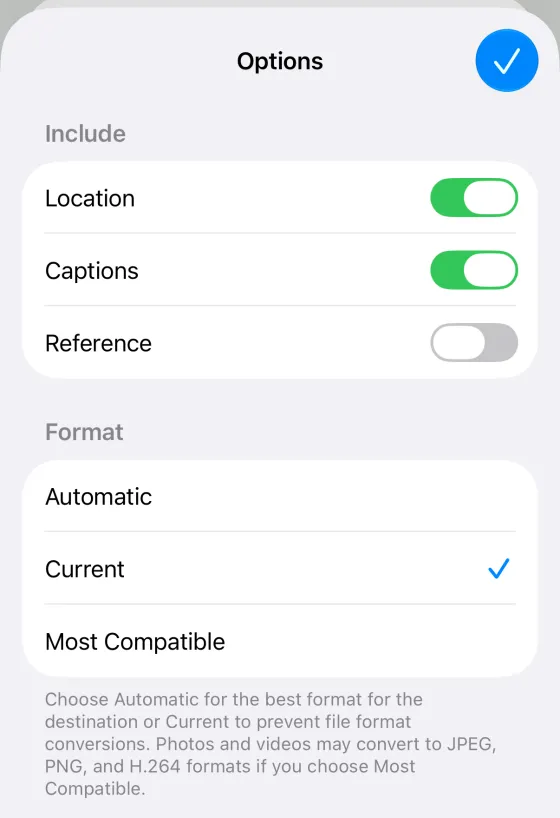
In the picker, tap Options, then Current under Format, so the page checks the original. Steps with pictures
Compare with its compressed copy
Pick the copy from Photos too, with Options, Format, Current.
Pick the video the right way first
On iPhone
- Tap Choose a video, then Photo Library.
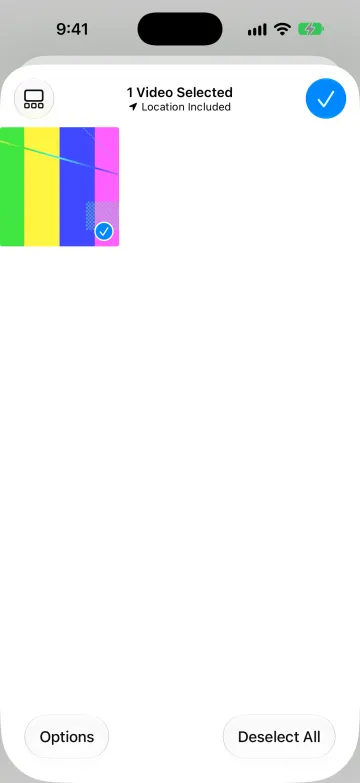
- Tap the video to select it.
- Tap Options, bottom left.
- Under Format, tap Current. Keep Location on to check the date and place.
- Tap the checkmark at the top right.
On a Mac
Choose the video in Finder, or in Photos, choose File, Export, Export Unmodified Original.
1.9 GB
you could free
of 2.2 GB, 5:00 long
Emptie’s own test: a 5-minute 4K Dolby Vision video went from 2.2 GB to 323 MB at Balanced, and looked the same.
What the checker reads
A video file keeps its description in one place, an index called moov, and its pictures and sound in another, mdat. The checker reads only the index. It moves past the pictures without reading them, so a 3 GB video costs the page a few kilobytes of reads, and the file stays where it is.
From the index it shows the size, length, container (QuickTime or MP4), codec, resolution, frame rate and average bitrate. It also shows the dynamic range, the recording date and time, the place, the camera and the sound track. Missing fields say “Not in this file”.
- Tap Choose a video, then Photo Library. On a Mac, pick the file in Finder.
- Tap Options, bottom left. Under Format, tap Current. Keep Location on.
- Tap the video and the checkmark. The page reads the file on your device.
Why the picker converts the video
When a web page asks for a video, Photos hands it a copy. By default the Format is Automatic, which gives the page the most compatible version: an H.264 file that plays in any browser. The copy is not the video you recorded.
We tested this in the iOS 27 Simulator with a 5-second HEVC clip, tagged with a location and a recording date. The page received a 9,506,554-byte H.264 copy, against the 7,624,391-byte HEVC original. The copy had no location and no creation date. Photos kept the original untouched, but the page had a different file.
| Format: Automatic (default) | Format: Current | |
|---|---|---|
| What the page gets | An H.264 copy, 9,506,554 bytes | The original, 7,624,391 bytes |
| Codec | H.264 | HEVC |
| Recorded date and location | Removed | Kept |
Probably a converted copy. The checker flags H.264 video with none of the Apple details an iPhone records. If you see this, the picker used Automatic. Pick the video again with Options, Format, Current. Nothing in your library changed.
Keep Location on. The same Options sheet has a Location switch. It is on by default; leave it on so the place is in the file.
What HDR and Dolby Vision mean in the file
SDR is the ordinary dynamic range that most screens show. HDR keeps brighter highlights and more detail in them. iPhone records HDR in two forms the checker names:
- HDR (HLG): the picture also looks right on an SDR screen, so it can be shown on both.
- HDR10 (PQ): an HDR curve that needs an HDR screen.
Dolby Vision adds metadata for each scene on top of a base picture. iPhone’s Dolby Vision is profile 8.4: an HLG base layer that any HDR screen can play, plus the Dolby data. In the file it is marked by a Dolby Vision configuration record, which Apple describes in TN3145. The checker reads that record and shows the profile as “Dolby Vision profile 8.4”.
Dates, time zones and places
Photos stores the time the phone recorded, with its offset from UTC, as creationdate. The checker shows that wall-clock time with its offset, so 18:30 at UTC+03:00 stays 18:30. The movie’s own header stores a time too, but in UTC. When a file has no recording date, the checker shows that time and says it is UTC.
The place is stored as ISO 6709 text: latitude, longitude and, if present, altitude. Some tools write it under ©xyz, a name ExifTool uses. The checker reads that as a fallback. It shows the coordinates as text and loads no map.
What the estimate means
The ring is the file’s size. The mint arc is what Emptie could free at the Preset you choose. High Quality keeps 4K, Balanced makes 1080p at medium, and Max Savings makes 1080p at high. The bitrates behind them are provisional and can change as Emptie is tuned.
For a 5-minute 4K Dolby Vision clip of 2.18 GB, Balanced gives about 307 MB by the estimate. Emptie’s measured copy was 323 MB, so the estimate runs about 5% low. Treat it as about, not exact. A video whose copy would save under 20% is Already efficient, and Emptie leaves it alone.
Compare with the copy
Choose an original and its compressed copy to check four things: length, recorded date, location and HDR. Emptie makes the same kind of check before it replaces an original. It carries over the date, location, Favorite, Hidden and your own albums. Face tags, Memories and Shared Album links cannot be carried over.
Read more. Does compressing video lose quality?, Why a compressed video has the wrong date or location and High Efficiency or Most Compatible.
Your file stays on your device
The page makes no request while you use it. It sets no cookie and stores nothing. It reads the file in slices, so the file never has to fit in memory. The file name and coordinates appear on this page only.
Figures checked on